
Live Preview
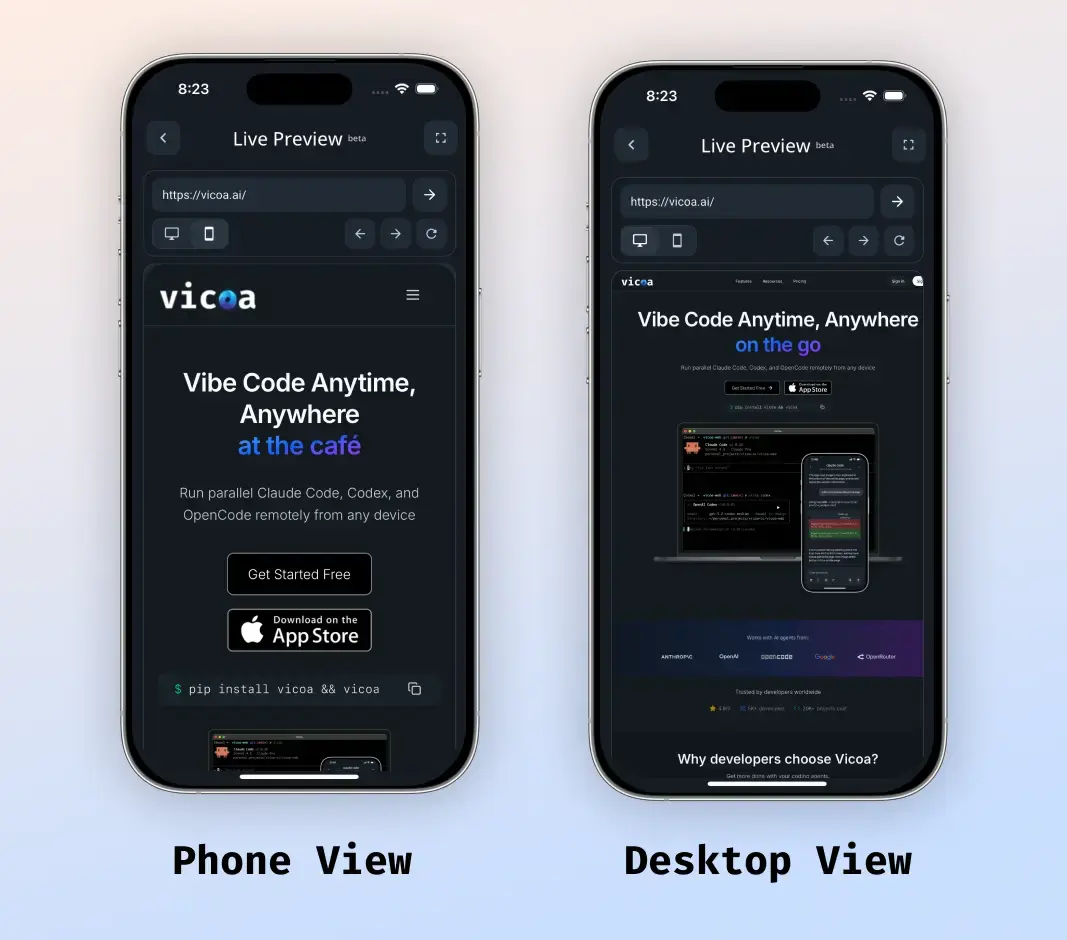
Live Preview lets you start your local app, expose it with a tunnel, and open it inside Vicoa on your phone with both mobile and desktop views.
Use it when you want to check your local web app on your phone while you are away from your desktop.
What it does
After setup, the Live Preview can:
- Start or reuse your local dev server
- Create a public preview URL
- Return a tunnel link you can open in Vicoa
- Let you switch between mobile and desktop preview inside the app
Prerequisites
- Vicoa is already set up. If not, follow Set up Vicoa
- You have installed Vicoa app. Live preview is currently only available on mobile.
1. Install the Live Preview skill
The Live Preview skill is open-sourced at https://github.com/vicoa-ai/agent-skills.
You have two easy ways to install it:
Option 1. Install it yourself
npx skills add vicoa-ai/agent-skillsThen select live-preview when prompted.
If you want to install it specifically for Claude Code, use:
npx skills add vicoa-ai/agent-skills --agent claude-codeOption 2. Ask the agent to install it
You can also ask your agent to install the skill for you from https://github.com/vicoa-ai/agent-skills.
For example:
- "Install the
live-previewskill fromhttps://github.com/vicoa-ai/agent-skills"
2. Start Live Preview
After the skill is installed, run it from your agent session in the project you want to preview.
Claude Code
Use the skill:
/live-previewYou should be able to see the skills for selection as you type /live-preview in the mobile app.
You can also pass a command, port, or provider if needed.
Examples:
/live-preview npm run dev
/live-preview 3000
/live-preview use cloudflare
/live-preview use ngrok
Codex
Use the skill invocation:
$live-preview3. What happens next
When Live Preview runs, it will usually:
- Detect the dev server command from your project, or use the one you provided
- Start the app or reuse the matching running service
- Check that the local app is reachable
- Create a public tunnel URL
- Return the local URL and public URL
The returned public_url is the link you can open in Vicoa.
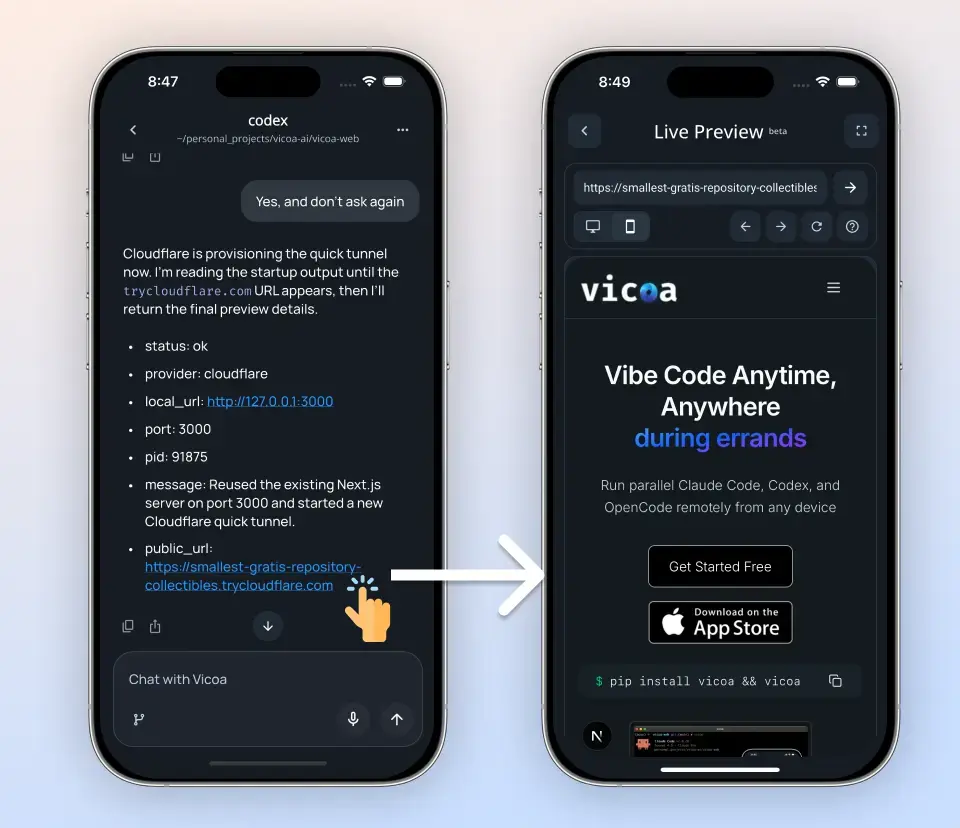
We have already built it in the app that urls from cloudflare and ngrok are opened with the Live Preview automatically.
Why there are both mobile and desktop views
You are still using the preview on your phone, but not every project is a mobile-first app.
Many users are building web apps. On a phone, the default preview is naturally the phone layout. That is useful for responsive checks, touch interactions, and small-screen behavior.
But if you are developing a desktop-oriented web app, you also need a way to inspect the wider desktop layout without leaving the phone. The desktop toggle gives you that wider viewport inside the mobile app, so you can compare the desktop and phone renderings on the same device.
If you still see the phone view under desktop tab, try tapping the refresh button.
4. Open it in the Vicoa mobile app
In the Vicoa mobile app:
- Tap on the link to open Live Preview
- Or you can paste the tunnel URL into the Live Preview page
- Switch between mobile and desktop view using the mode toggle
Use mobile mode to check touch layout, responsive behavior, and the real phone experience.
Use desktop mode when your project is a web app and you want to inspect a wider desktop-style layout even though you are currently viewing it on your phone.
Tips
- If your app is already running, Live Preview can reuse it instead of starting another process
- If your usual port is occupied by another project, the skill may choose a different port
- If Cloudflare is unavailable, the skill can fall back to ngrok
- HTTPS preview URLs are useful for testing features that require a secure context
Troubleshooting
The skill is not available
Confirm that live-preview was installed into the correct agent environment, then restart the agent session if needed.
For claude code, check ~/.claude/skills/ or local project .claude/skills/ folders to see if the skill is installed.
For most of the other agents, check ~/agents/skills/ or local project .agents/skills/ folders to see if the skill is installed.
The site looks wrong on mobile
Switch between mobile and desktop mode in the Vicoa preview screen to compare both layouts quickly on the same phone.
The desktop view is the same as the phone view
Try refreshing the page by tapping the refresh button. Due to responsive designs of websites, sometimes it is not stable to show the desktop view.
Next Steps
- Learn the basics in Set up Vicoa
- Start remote agent sessions with Start a Remote Session
- Review agent-specific setup in Agents